

Author: @atilayberber
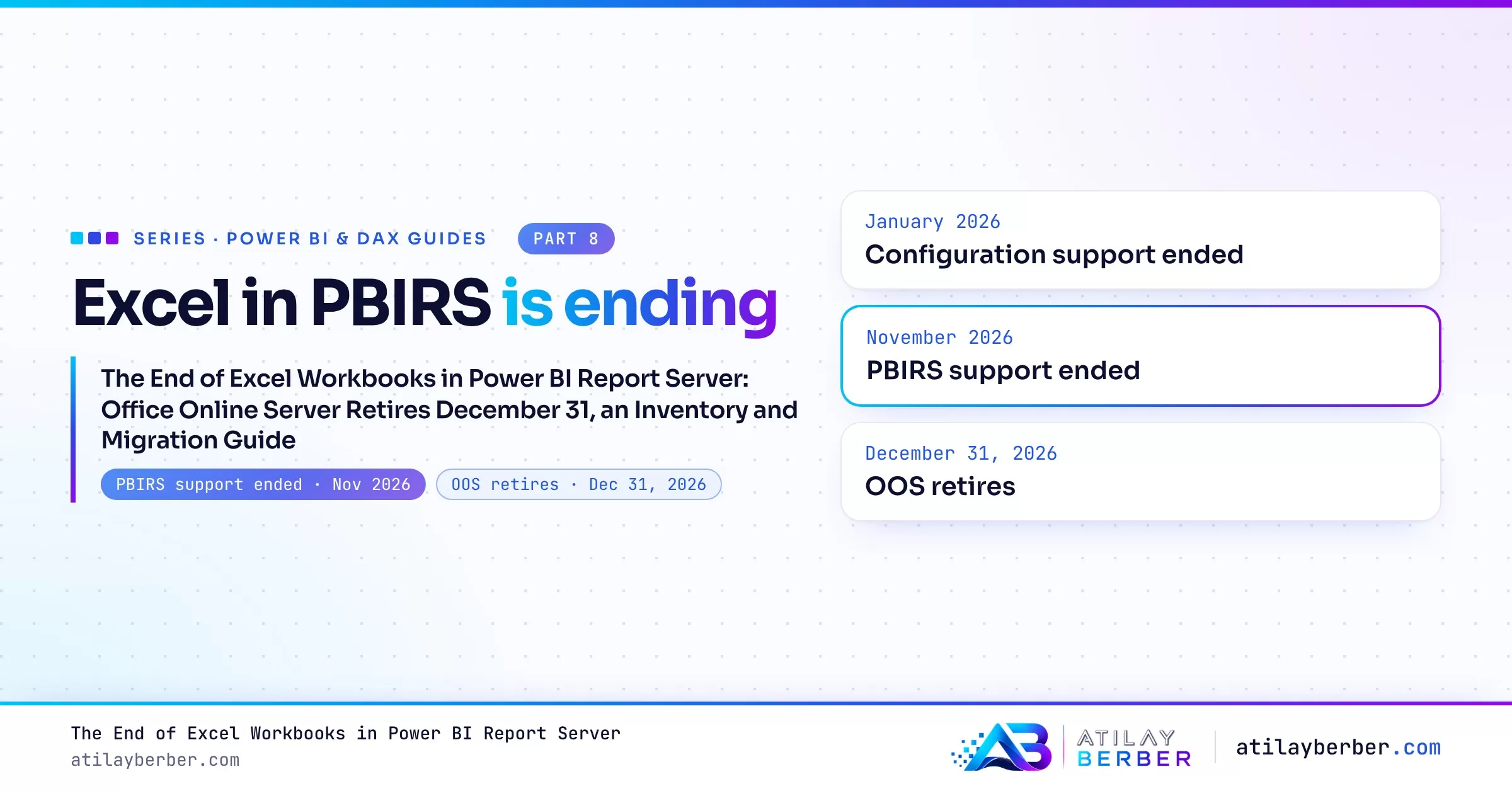
Most organizations running Power BI Report Server (PBIRS) have an “Excel Workbooks” section in the web portal. The sales team’s pivot tables, finance’s Power Pivot models, a few old reports wired to an SSAS cube… The piece that lets those files open in the browser is Office Online Server (OOS). And OOS reaches the end of the road on December 31, 2026.
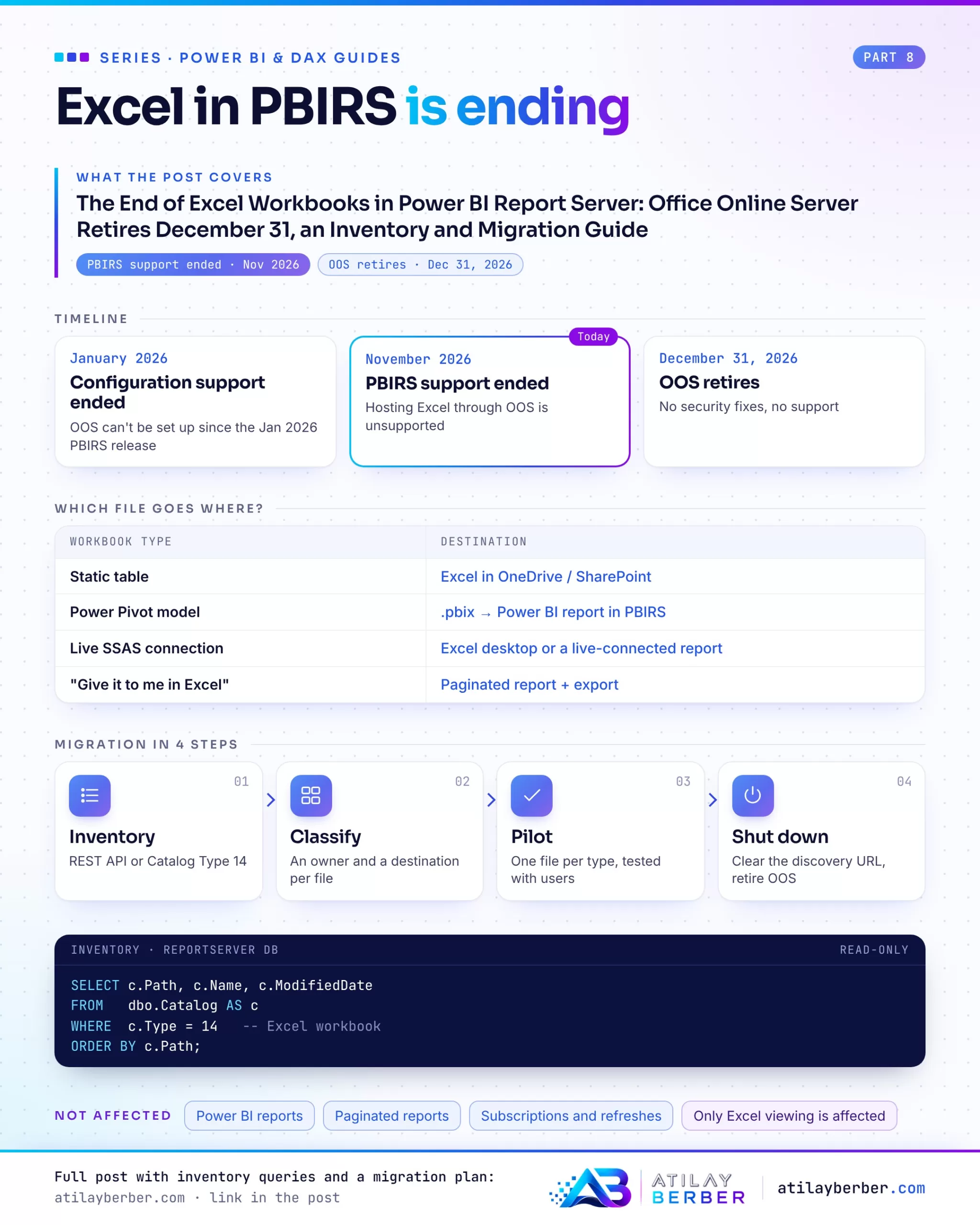
More importantly, support on the PBIRS side ended even earlier, in November 2026. So if you host Excel workbooks in PBIRS through OOS today, you’re already running an unsupported setup. This post walks through what’s ending, what isn’t affected, how to find the affected files, and which destination makes sense for each kind of workbook.
In short
- Microsoft announced that Office Online Server retires on December 31, 2026. After that date there are no security updates and no technical support.
- Support for hosting Excel workbooks in PBIRS through OOS ended in November 2026. Configuring OOS hasn’t been supported since the January 2026 PBIRS release.
- The only thing affected is opening Excel workbooks in the web portal. Power BI reports and paginated reports don’t use OOS.
- Microsoft’s recommended paths: Microsoft 365 Excel, the Power BI service, or keeping reports in PBIRS and exporting to Excel when needed.
- Step one is an inventory: which workbooks exist, who uses them, and what kind of data connection is inside?
The timeline: three dates, three different meanings
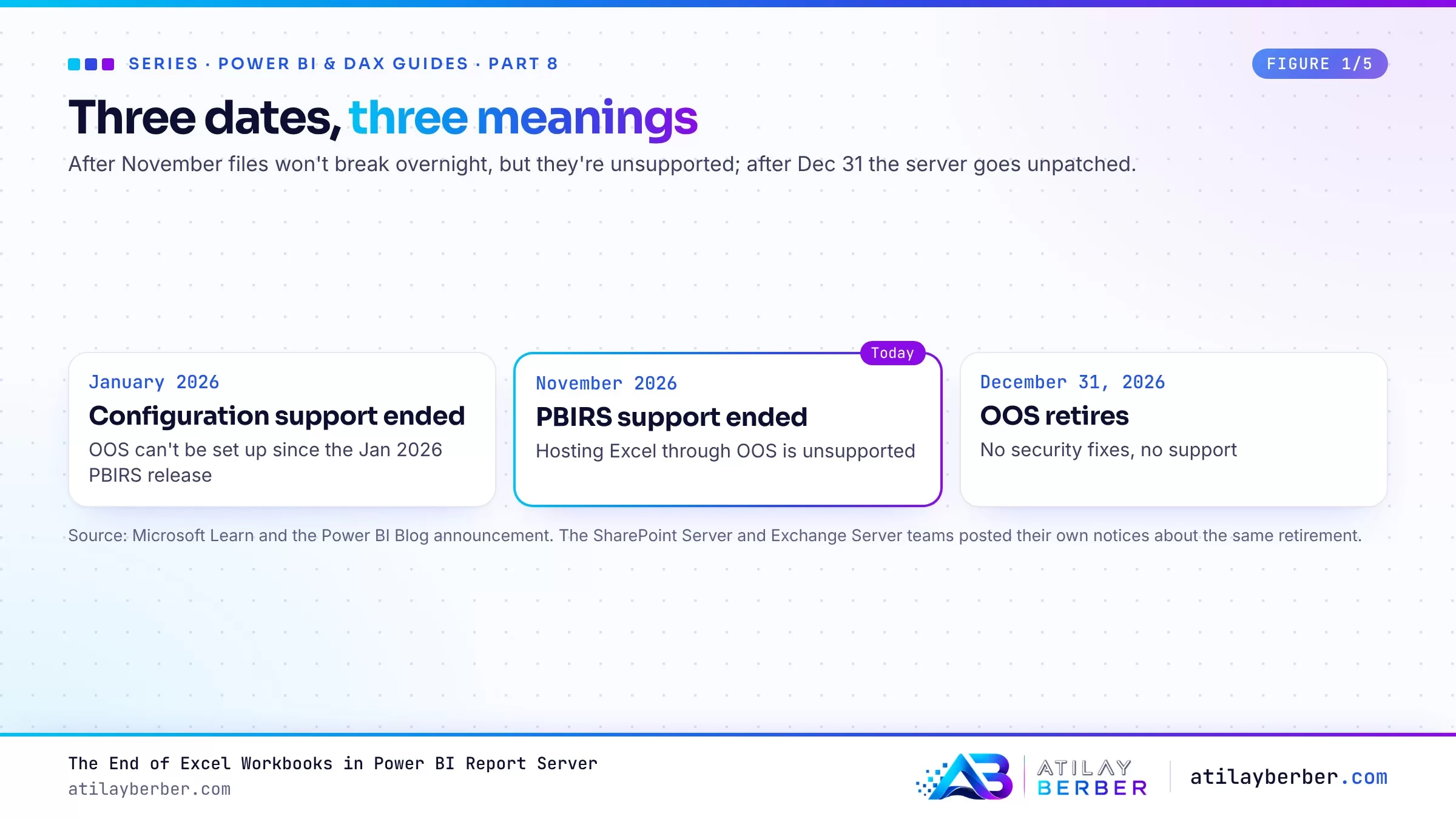
| Date | What happens |
|---|---|
| January 2026 | Starting with the January 2026 PBIRS release, configuring OOS to host Excel workbooks is no longer supported. New deployments shouldn’t set up OOS integration. |
| November 2026 | Support for hosting Excel workbooks in PBIRS through OOS ends (per the PBIRS support timelines policy). |
| December 31, 2026 | Office Online Server is officially retired: no updates, no security fixes, no technical support. |
There’s a subtle distinction here. After November your workbooks probably won’t break overnight, but when something goes wrong there’s no support to call. After December 31, you’ve left an unpatched web server on the corporate network. That’s a hard case to make to a security team.
OOS isn’t only a PBIRS concern. The SharePoint Server and Exchange Server teams published their own notices about the same retirement. If the server serves more than PBIRS, plan the move together with those teams.
How it works today, and what breaks
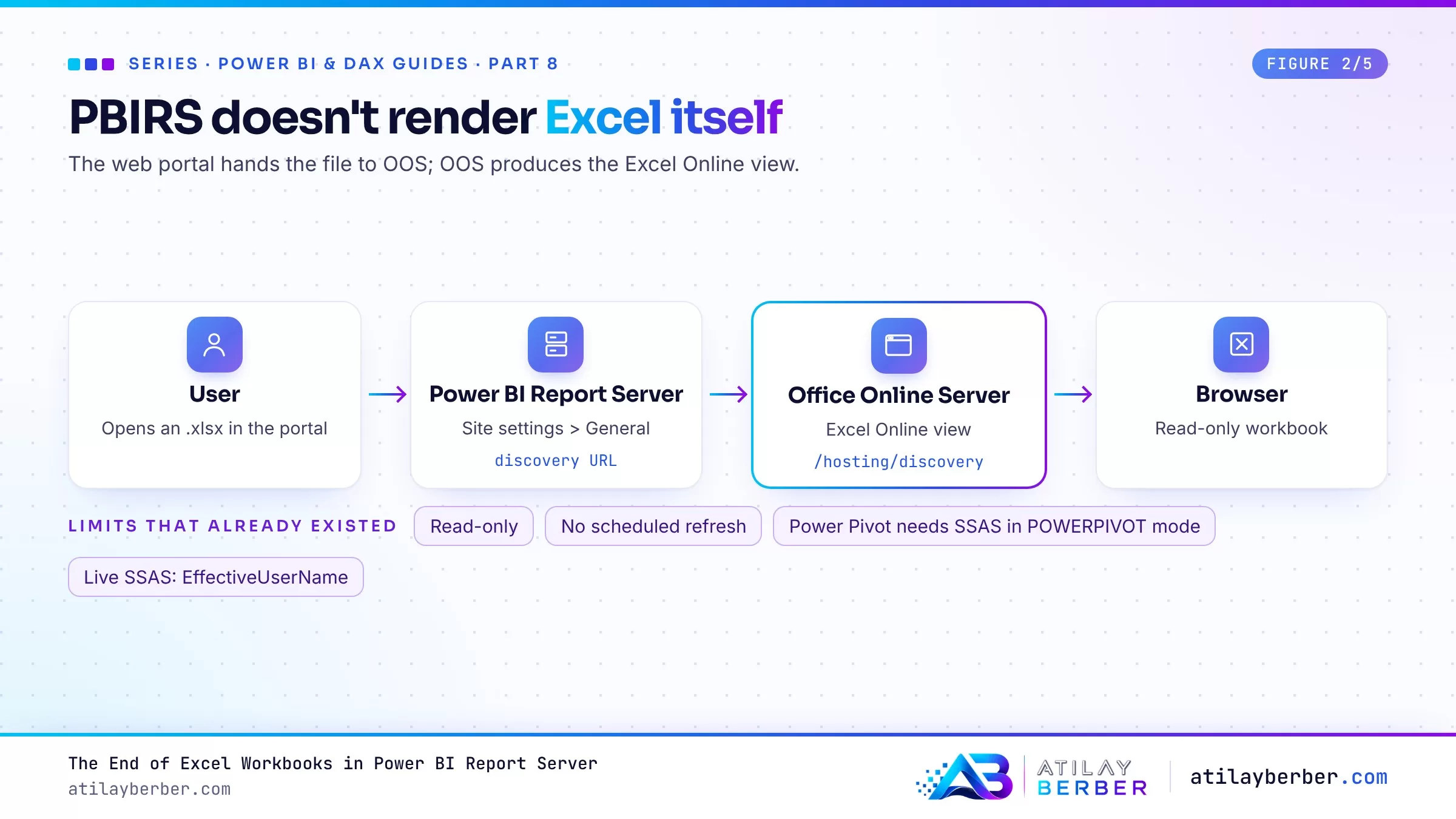
PBIRS doesn’t render Excel files itself. An OOS discovery URL entered under Site settings > General in the web portal (for example https://oos.contoso.local/hosting/discovery) lets it hand the file to OOS, which opens it in the browser with the Excel Online view. Only users in the System Administrator role see that setting.
The setup already had limits, and they’ll help with the migration plan:
- Workbooks open read-only in the portal.
- There’s no scheduled refresh for Excel workbooks in PBIRS.
- Files with a Power Pivot model need a separate Analysis Services instance in Power Pivot mode (
POWERPIVOT). - Files with live SSAS connections query with the user’s own identity through
EffectiveUserName, which requires OOS to sit in the same Active Directory forest as SSAS.
So the real question isn’t “what happens when OOS goes away?” It’s “what job are these files actually doing today?”
Step 1: Build the inventory
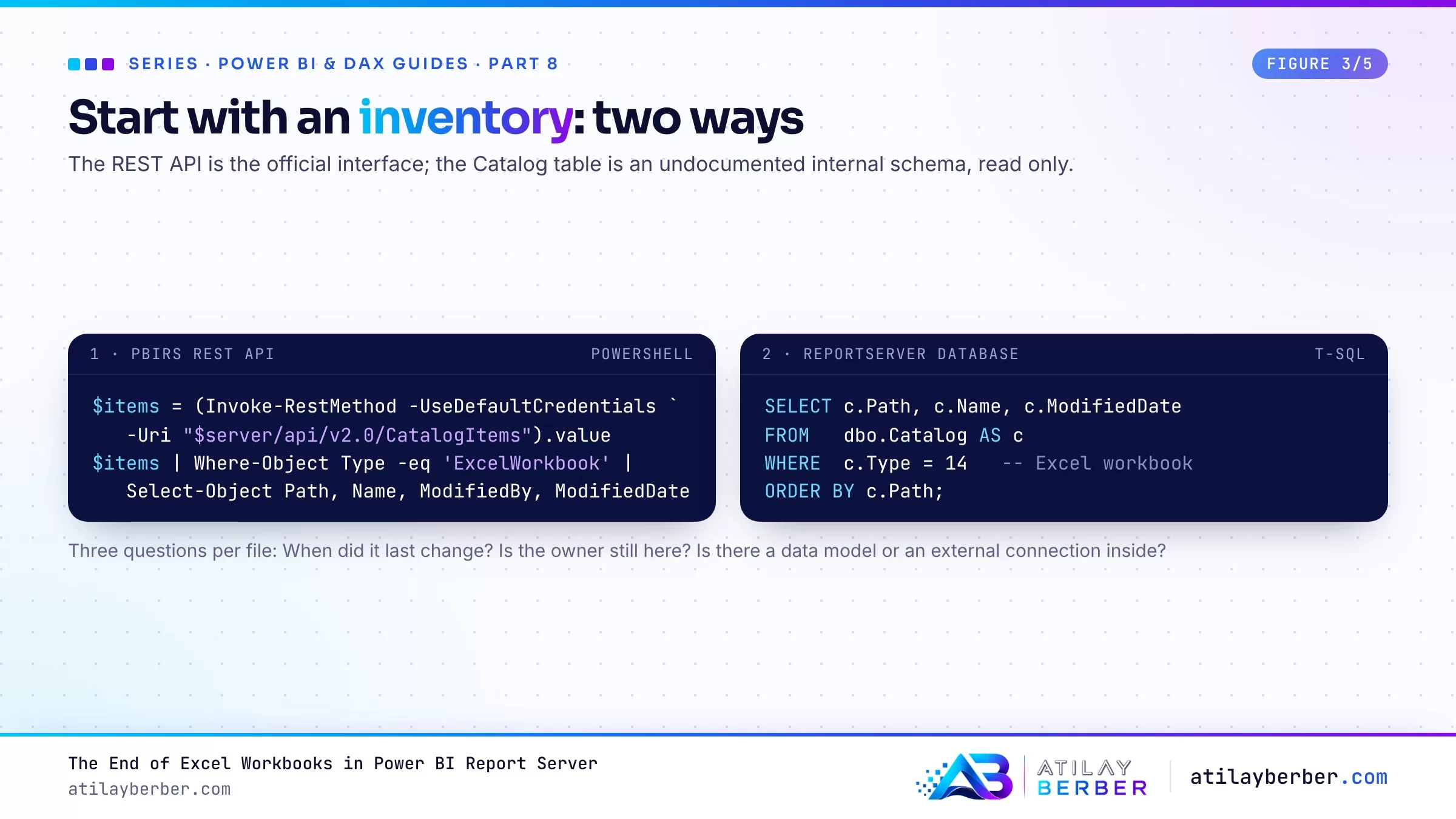
There are two ways. The first is the PBIRS REST API. Run it from PowerShell with an account that can reach the web portal:
$server = "https://reports.contoso.local/reports"
$items = (Invoke-RestMethod -Uri "$server/api/v2.0/CatalogItems" -UseDefaultCredentials).value
$items | Where-Object Type -eq 'ExcelWorkbook' |
    Select-Object Path, Name, ModifiedBy, ModifiedDate, Size |
    Export-Csv excel-inventory.csv -NoTypeInformation -Encoding UTF8
The second is the ReportServer database itself. In dbo.Catalog, Excel workbooks are stored as Type = 14. This table isn’t an officially documented interface; read it, never change it:
SELECT  c.Path,
        c.Name,
        u.UserName      AS LastModifiedBy,
        c.ModifiedDate  AS LastModified,
        c.ContentSize / 1024 AS SizeKB
FROM    dbo.Catalog AS c
LEFT JOIN dbo.Users AS u ON u.UserID = c.ModifiedByID
WHERE   c.Type = 14          -- Excel workbook
ORDER BY c.Path;
Once you have the list, ask three questions of every file: When did it last change? Is its owner still with the company? Is there a data model or an external connection inside? Some of the files nobody has touched in a long time deserve an archive, not a migration.
Step 2: Classify the files and pick a destination
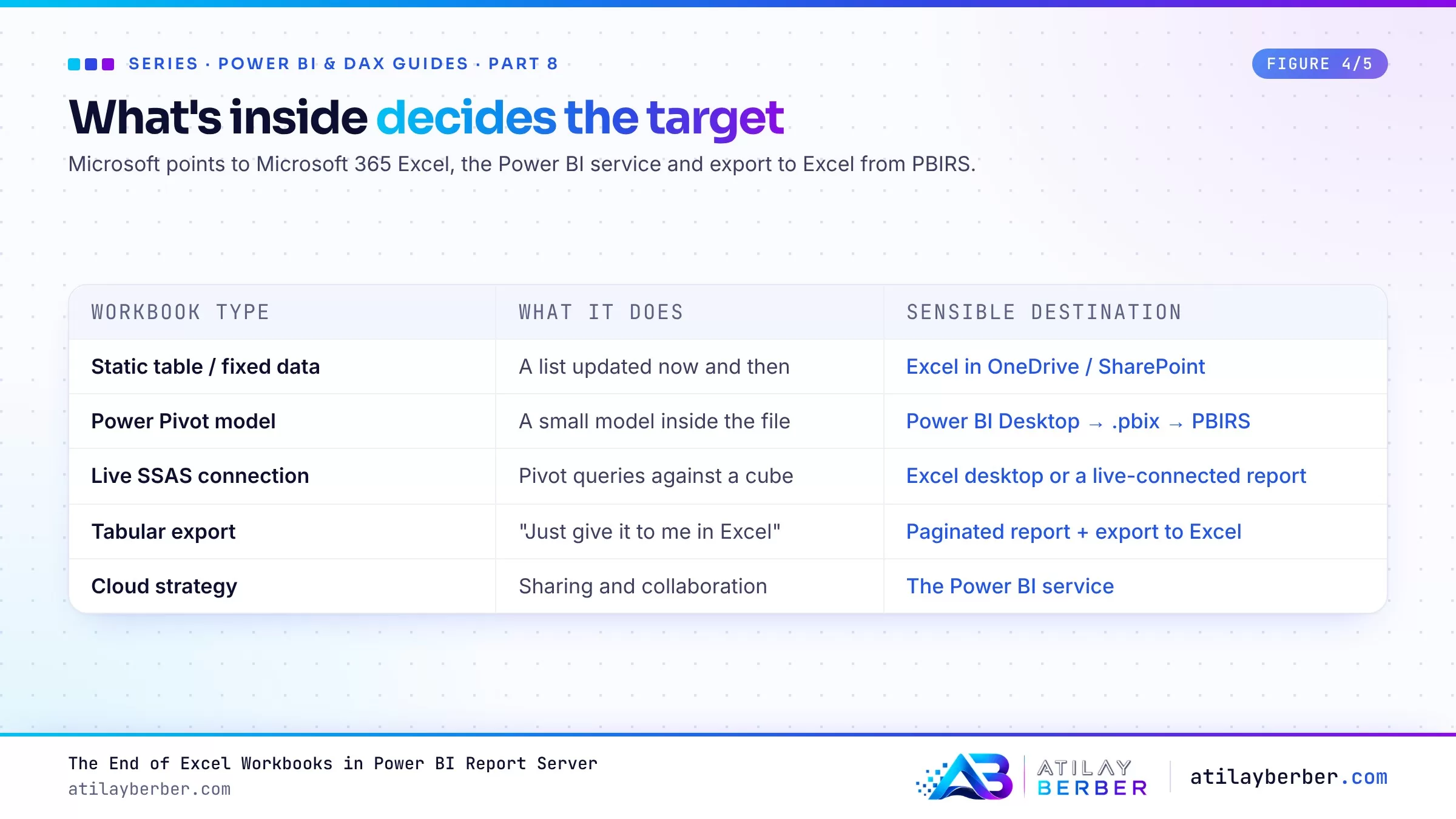
Microsoft points to three paths: Microsoft 365 Excel (web or desktop), the Power BI service, and keeping the report in PBIRS with export to Excel when needed. Which one fits depends on what’s inside the file:
| Workbook type | What it does | Sensible destination |
|---|---|---|
| Static table / fixed data | A list that’s updated now and then | Excel in OneDrive / SharePoint, or simply Excel desktop |
| Power Pivot model | A small data model lives inside the file | Move it to a .pbix with Power BI Desktop and publish to PBIRS as a Power BI report |
| Live SSAS connection | Pivot queries against a cube or tabular model | Users connect to SSAS from Excel desktop, or a Power BI report live-connected to the same model |
| Tabular export | The “just give it to me in Excel” need | A paginated report, or a Power BI report plus export to Excel |
| Cloud-first organization | Sharing and collaboration | The Power BI service |
For Power Pivot files, Power BI Desktop has an option that imports a workbook’s Power Query, Power Pivot and Power View content. Try it on a pilot file in the Desktop version optimized for Report Server first. Measures and relationships usually come across, but the pivot tables themselves don’t; you rebuild those as report visuals.
Step 3: A migration plan (8 steps)
- Inventory: a complete list from the REST API or
dbo.Catalog. - Ownership: assign an owner to every file. A file without an owner is a file without a decision.
- Triage: archive files that haven’t changed in a year and that nobody claims.
- Classification: write a destination next to every file, using the table above.
- Pilot: move one file of each type and test it with its users.
- Announcement: tell users the new location and the date in advance; update old links in bookmarks and emails.
- Shutdown: once the move is done, clear the OOS discovery URL in Site settings and decommission the OOS server with the infrastructure team.
- Documentation: keep a short table of which file went where. Six months from now, it’s the answer to “where did that report go?”
What isn’t affected?
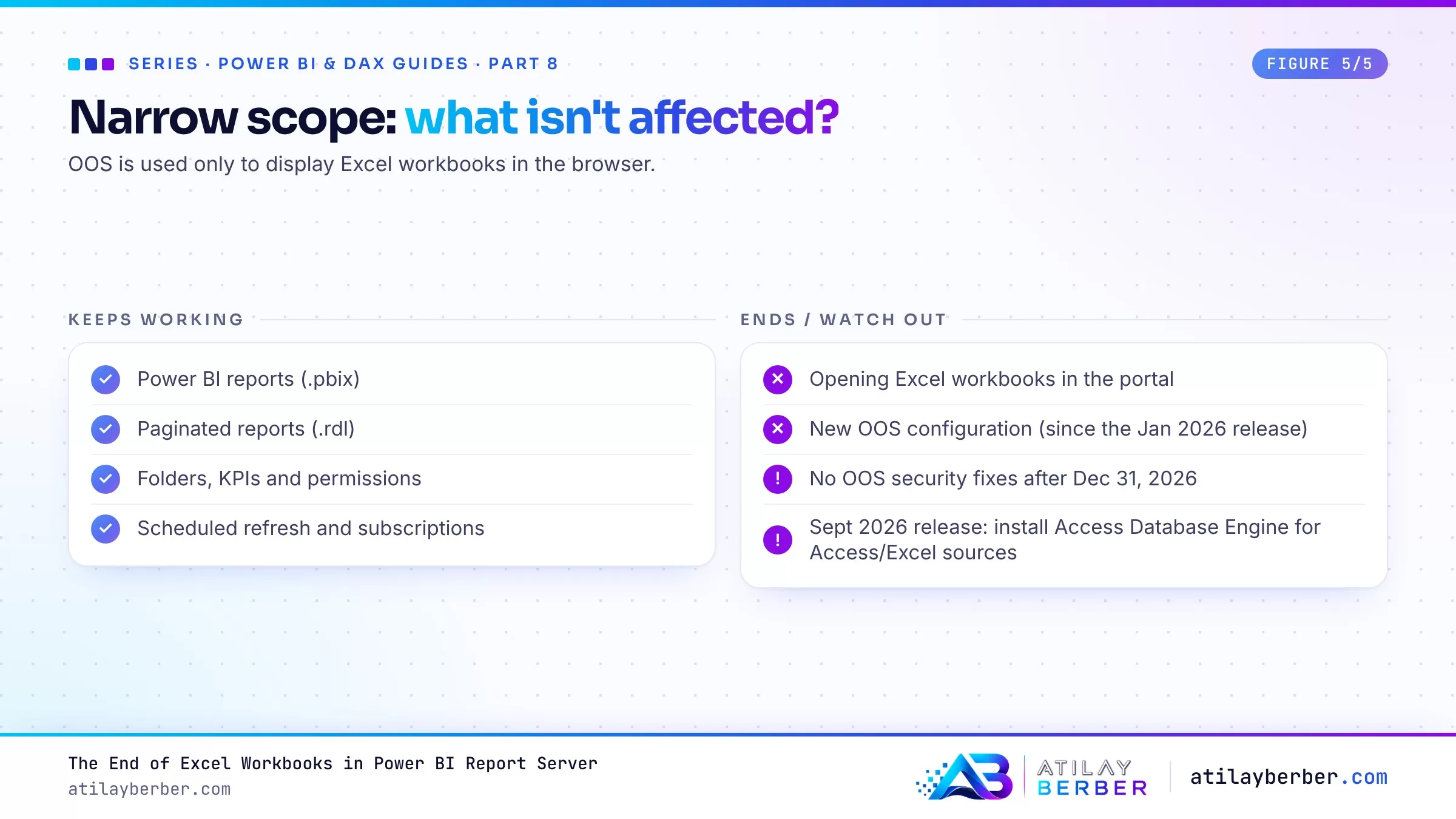
No need to panic; the change is narrow. OOS is used only to display Excel workbooks in the browser. Power BI reports (.pbix), paginated reports (.rdl), KPIs, scheduled refreshes and subscriptions in PBIRS don’t depend on it. One small side note: starting with the September 2026 PBIRS release, reports that use Access or Excel data sources need the Access Database Engine installed separately on the server. That’s unrelated to OOS, but you may run into it during the same upgrade window.
My take
If you treat this as “moving some Excel files,” it’s a dull cleanup. I see it as an opportunity: most Power Pivot files in PBIRS really want to be a semantic model. Measures buried inside a file, relationships nobody can see, tables updated by hand… Moving them into a Power BI model solves the OOS problem and the single-source-of-truth problem at the same time. Excel isn’t going anywhere. What’s going away is the habit of using Excel as a reporting server.
I covered a similar retirement timeline in the R and Python visuals post, and another admin deadline in the Copilot transition post.
How many Excel workbooks live in your PBIRS? Let me know in the comments or on LinkedIn.
Sources
- Microsoft Learn: Configure your report server to host Excel workbooks using Office Online Server (being deprecated)
- Power BI Blog: Deprecation Announcement: Office Online Server Retirement and What it Means for Power BI Report Server Users
- Microsoft Tech Community: Announcing the retirement for Office Online Server
- Microsoft Learn: Power BI Report Server data sources
- Microsoft Learn Q&A: SSRS Catalog Type 14 (Excel workbook)