

Author: @atilayberber
For years, Power BI reports lived inside one big JSON file. Two people editing the same report, seeing what a change broke, or moving a visual to another report was always a hassle.
As of September 2026, that era is officially over. Microsoft announced two things at once: the Power BI Project (PBIP) format is generally available, and PBIR is now the default report format for both PBIX and PBIP files.
It sounds like a technical footnote, but it affects your daily work. The moment you open an older report and save it, its format quietly changes.
In short
- New reports are created in PBIR from the start.
- Older (PBIR-Legacy) reports convert to PBIR automatically when you edit and save them, in Desktop or in the service.
- Desktop keeps a backup for 30 days and the service for 28 days. Still, it’s safer to treat conversion as permanent.
- In PBIR, every page and every visual is its own file. Diffs in Git, code reviews and edits by AI agents all get easier.
- Before moving a team over, check a few risks: sensitivity labels, Report Server, private custom visuals and path length.
PBIX, PBIP and PBIR: who’s who?
These acronyms get mixed up a lot:
| Term | What it is |
|---|---|
| PBIX | The classic single-file Power BI file. Still around. |
| PBIP | A project format that stores the report and the model as a folder of text files. |
| TMDL | The semantic model format inside PBIP. |
| PBIR | The report format. Now the default inside PBIX too. |
| PBIR-Legacy | The old report format: one big report.json. |
So you don’t have to move to PBIP to use PBIR. The report inside your PBIX is PBIR now as well. But to get the real benefit, use PBIP and Git together.
What’s inside PBIR?
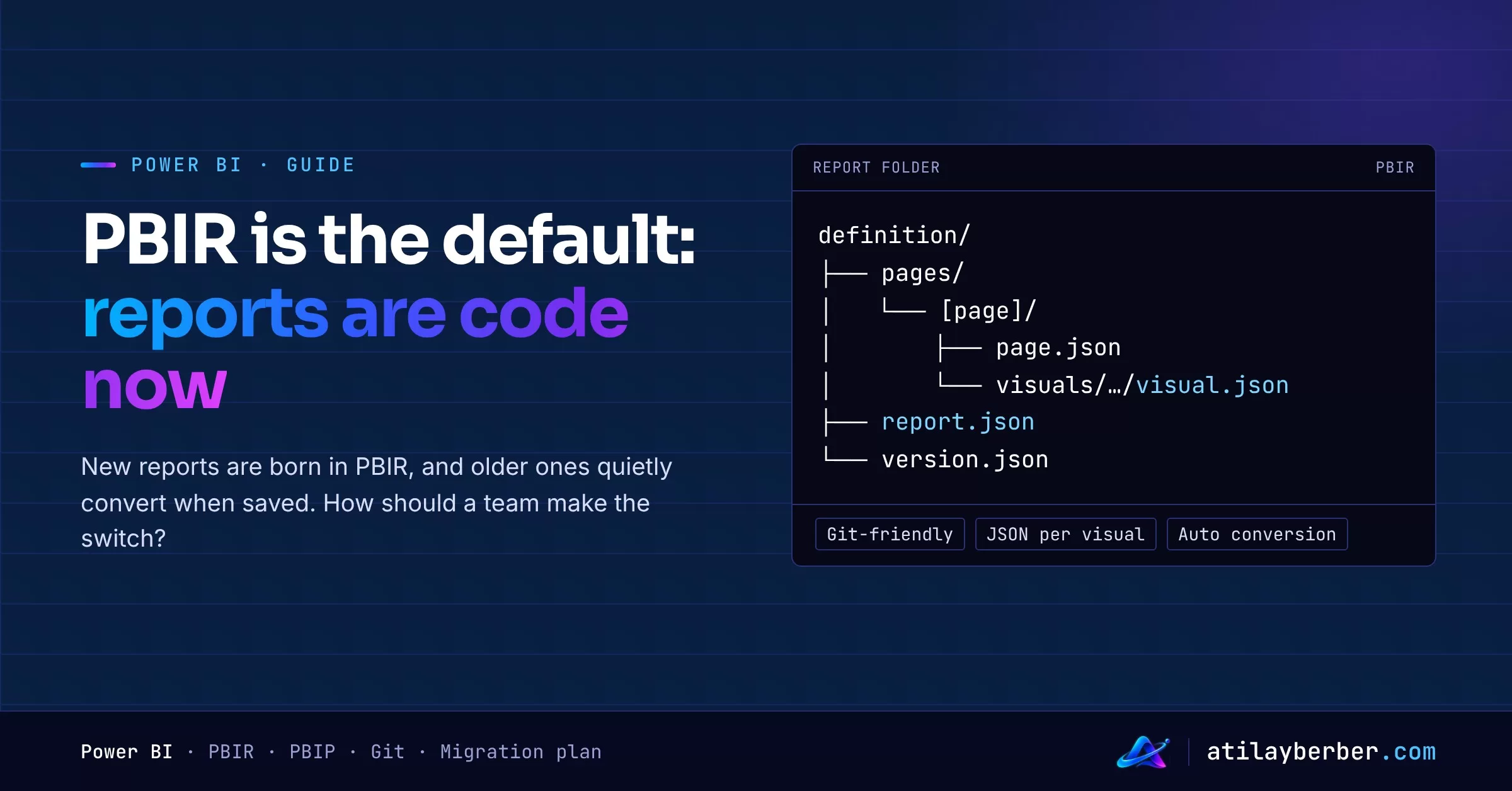
PBIR stores the report in a definition folder, with each object in its own file:
definition\
├── bookmarks\
├── pages\
│   ├── [page]\
│   │   ├── visuals\[visual]\visual.json
│   │   └── page.json
│   └── pages.json
├── reportExtensions.json
├── report.json
└── version.json
What that means in practice:
- Readable diffs in Git. If a visual’s title changes, only that visual’s file changes.
- Parallel work. Two people working on different pages get far fewer merge conflicts.
- Copy and paste. You can move a visual’s folder to another report.
- Schema support. Every JSON file points to a published schema, so VS Code gives you autocomplete and validation.
- AI agents. The workflows in my post on agents building Power BI reports are built on this format.
Automatic conversion: the part to watch most
When you open, edit and save a report in the old format, Power BI converts it to PBIR. This happens in Desktop and in the service, with no warning dialog.
What to know about backups:
- Desktop keeps the pre-conversion version for 30 days. The location is
%USERPROFILE%\Microsoft\Power BI Desktop Store App\TempSaves\Backupsfor the Microsoft Store version and%USERPROFILE%\AppData\Local\Microsoft\Power BI Desktop\TempSaves\Backupsfor the installer version. - The service keeps a backup for 28 days, but only for reports converted directly in the service. You restore it with Restore as PBIR-Legacy in the report settings.
- Restoring a backup doesn’t stop the report from converting again the next time it’s edited.
The only way to keep a report in the old format is to avoid editing it in the service and use a Desktop release from before September 2026. That’s not a sustainable strategy. It’s better to accept conversion as one-way and prepare for it.
Limits and risks
Service limits per report in PBIR:
| Limit | Value |
|---|---|
| Pages per report | 1,000 |
| Visuals per page | 1,000 |
| Resource package files | 1,000 |
| Total report size | 300 MB |
Check these before you move over:
- Sensitivity labels and Report Server. Power BI projects don’t support sensitivity labels or the Desktop version optimized for Report Server.
- Custom visuals. Test private (organizational) visuals after conversion.
- File location. PBIP can’t be saved directly to OneDrive or SharePoint, and synced folders can cause trouble. Windows’ 260-character path limit applies too, so keep the project root short.
- Rules for external editing. Files must match their schemas. Object and folder names can only contain letters, digits, underscores and hyphens, and renaming can break references.
- Accidental data leaks. Some metadata files can contain model values such as filter values. Look before you commit.
- Publishing differences. Publishing from Desktop uploads a temporary PBIX that includes the local data cache. Fabric Git integration and the REST APIs move metadata only.
Editing outside Desktop
One of the most practical parts of PBIR is editing files in VS Code while Desktop is open:
- Save your changes in Desktop.
- Edit the file in VS Code (or with an agent) and save it.
- Click the Apply external changes banner in Desktop. It reloads without reopening the project.
If a file doesn’t match its schema, Desktop won’t load the change and shows the error. Small issues, such as an invalid active page name, it fixes itself and warns you about.
A migration plan for teams
- Take inventory. List reports with sensitivity labels, Report Server dependencies, private custom visuals and very large page counts.
- Align Desktop versions. Everyone should be on a current release. From October 2026, versions from March 2026 or earlier can no longer save to OneDrive and SharePoint.
- Pilot one report. Edit it, save it, confirm it converted to PBIR, and note where the backup went.
- Put it in Git as PBIP. Use a short local path and keep the default
.gitignore.localSettings.jsonis personal and stays out of the repo. - Choose a deployment route. Fabric Git integration, the REST APIs or Desktop publish. Only Desktop publish carries the data cache.
- Tie every change to a pull request. Name separate approvers for the model and the report.
- Choose your agent tooling. The hosted Authoring MCP server for models in Fabric, the local server for Desktop and PBIP. Don’t register both at once.
- Tell your report authors. Everyone should know that editing an old report in the service converts it.
Conclusion
PBIR becoming the default means Power BI reports can now be managed like software: version control, code review, automated deployment and AI-assisted editing. Once that door is open, it’s hard to go back. So instead of “it converts automatically anyway,” a deliberate team plan means far fewer surprises.
Do you keep your reports in Git, or does the PBIX still live in a shared folder? Tell me in the comments.