

Author: @atilayberber
For years, searching text in DAX came down to two functions: SEARCH and CONTAINSSTRING. Both look for a sequence of characters. They don’t understand words, they don’t forgive typos, and they slow down on big tables. Search for “late delivery” and you’ll miss the customer who wrote “the delivery came late”.
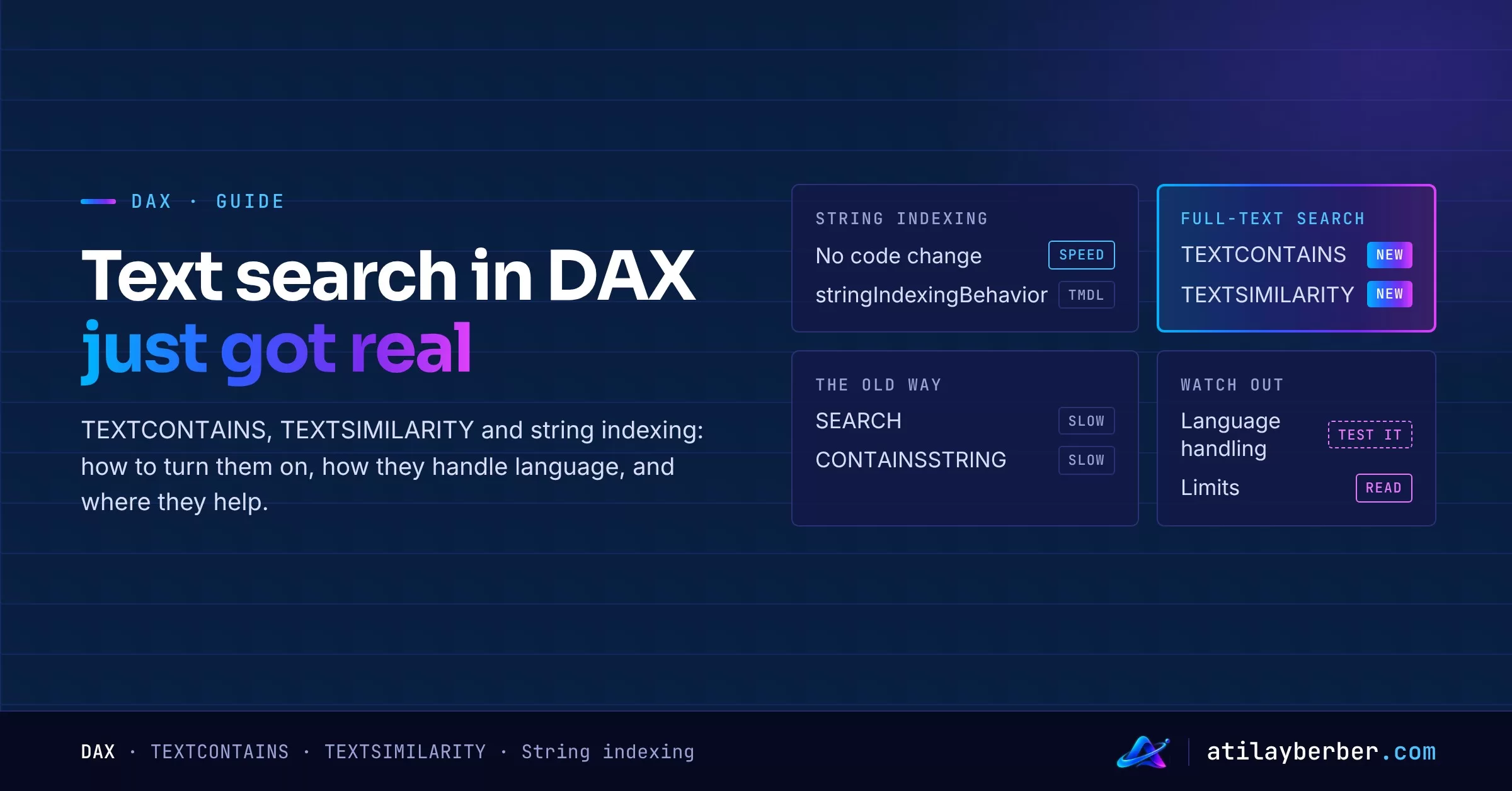
The September 2026 Power BI update changes that. Two features went into preview: string indexing, which speeds up the text functions you already use, and full-text search, which puts a real search engine inside DAX. Full-text search comes with two new functions, TEXTCONTAINS and TEXTSIMILARITY.
In this post I’ll walk through both, look at how they handle language, and show where they pay off with a few retail examples.
In short
- String indexing (compatibility level 1707) speeds up
SEARCH,CONTAINSSTRINGand advanced text slicers. No code changes. - Full-text search (compatibility level 1708) builds a column-level search index with stemming, stop-word removal, phrase matching and typo tolerance.
- TEXTCONTAINS returns true or false. TEXTSIMILARITY returns a relevance score.
- The analyzer language comes from the model language, and around twenty languages are supported.
- Both are in preview and are enabled through TMDL or XMLA for now. Desktop UI comes later.
Two features, two different jobs
The names sound alike, but they solve different problems:
| String indexing | Full-text search | |
|---|---|---|
| What it does | Speeds up character search | Searches by words and meaning |
| Functions | SEARCH, CONTAINSSTRING, text slicers | TEXTCONTAINS, TEXTSIMILARITY |
| Compatibility level | 1707+ | 1708+ |
| Storage modes | Import, Direct Lake | Import, Dual, Direct Lake |
| Code changes needed? | No | Yes, new functions |
Put simply: string indexing makes the same search faster. Full-text search makes it smarter.
String indexing: faster without touching your DAX
String indexing has two modes:
- Auto: builds the index in memory the first time a qualifying column is queried. It isn’t persisted, so it’s rebuilt if the column gets evicted. Microsoft positions it for smaller models.
- Full: builds and stores the index during scheduled refresh. Refresh time and model size grow slightly, but queries are fast from the first click.
To turn it on, set the column’s stringIndexingBehavior property to full. For now you do that in TMDL view on the web or through the XMLA endpoint.
column 'Product Description'
    dataType: string
    stringIndexingBehavior: full
I took the property spelling from the example in Microsoft’s announcement. TMDL view flags an unknown property right away, so it’s easy to check before you save.
Full-text search: a search engine in DAX
Full-text search works the same way. Set fullTextIndexingBehavior to full on the column you want to search, with the model at compatibility level 1708 or higher. Microsoft recommends Full mode during the preview.
column 'Review Text'
    dataType: string
    fullTextIndexingBehavior: full
Once the index is built, you can use the two functions.
TEXTCONTAINS: does it match?
TEXTCONTAINS ( <within_text_column>, <search_text> [, <match_mode>] )There are three match modes:
- TEXTMATCHING (default): splits the search text into terms and matches rows that contain any of them.
- FUZZYMATCHING: tolerates small spelling differences, so “headfone” still finds “headphone”.
- PHRASEMATCHING: requires the terms to appear next to each other and in order. Punctuation doesn’t break the sequence.
One detail matters: the function needs the index. If the column has no full-text index, you get an error.
TEXTSIMILARITY: how relevant is it?
TEXTSIMILARITY ( <within_text_column>, <search_text> [, <match_mode>] )It returns a decimal relevance score. Higher means more relevant, and zero means no match. The documentation doesn’t give a fixed maximum, and scores are only comparable for the same search text on the same column. A score of 2.35 means nothing on its own; it’s there for ranking.
How it handles language
This is where the details matter:
- The model language drives the analyzer. Stemming and stop-word removal follow it. Supported languages include English, French, German, Spanish, Portuguese, Italian, Dutch, the Nordic languages, Russian, Arabic and Turkish.
- It’s set on the model, not the column. In Power BI Desktop: File › Options and settings › Options › Current file › Regional settings › Model language. Column collation doesn’t change the analyzer.
- Search is case-insensitive.
- There’s no accent folding. The documentation’s example is that “café” doesn’t match “cafe”. If your text is full of words typed without accents, test whether FUZZYMATCHING catches them on your own data.
- Unsupported languages fall back to a simple lowercase tokenizer with no stemming or stop-word removal.
Three retail examples
The examples assume a 'Review' table with one customer review per row.
1. Complaints by topic
First, create a topic table that isn’t related to anything in the model. Each row holds a search expression:
Topic =
DATATABLE (
    "Topic", STRING,
    "Search", STRING,
    {
        { "Delivery", "late delivery" },
        { "Freshness", "spoiled stale" },
        { "Price", "expensive price" },
        { "Staff", "cashier staff" }
    }
)
Then write a measure that counts reviews matching the selected topic:
Reviews (Topic) =
VAR SearchText = SELECTEDVALUE ( Topic[Search] )
RETURN
    IF (
        NOT ISBLANK ( SearchText ),
        COUNTROWS ( FILTER ( 'Review', TEXTCONTAINS ( 'Review'[Text], SearchText ) ) )
    )
Put Topic[Topic] on the rows of a matrix and this measure in values. Passing the search text from a variable should work as expected in the preview, but verify it once in your own model.
2. A measure for the exact phrase “late delivery”
Late Delivery Complaints =
COUNTROWS (
    FILTER ( 'Review', TEXTCONTAINS ( 'Review'[Text], "late delivery", PHRASEMATCHING ) )
)
With TEXTMATCHING, every review mentioning “late” or “delivery” would count. PHRASEMATCHING requires the two words side by side.
3. The five most relevant reviews
EVALUATE
TOPN (
    5,
    FILTER ( 'Review', TEXTCONTAINS ( 'Review'[Text], "cold chain" ) ),
    TEXTSIMILARITY ( 'Review'[Text], "cold chain broken" ), DESC
)
TEXTCONTAINS narrows the candidates, then TEXTSIMILARITY ranks them. According to the documentation, the two functions run independently, so filtering doesn’t change the index scope used for scoring.
Limits to know about
- It’s a preview. Behavior and syntax can change. Wait, or test well, before putting it in a critical report.
- No UI yet. For now you need TMDL view on the web or XMLA. Desktop support comes later.
- It runs row by row. Microsoft recommends testing with a representative workload before using it in a calculated column on a very large table.
- Refresh cost. The index is built during refresh. In Chris Webb’s test, a short-text column with 160,000 rows and 73,000 distinct values took about 1.4 seconds to index. Long text and many columns will take noticeably longer. You can track it in Profiler through Progress Report events with the message “Finished building persisted full-text index”.
- Don’t index everything. Microsoft warns that adding indexes to many text columns can slow refresh significantly.
- Slicers don’t benefit yet. According to Chris Webb, slicer search doesn’t use the full-text index for now; the functions work in measures and calculated columns.
Where to start
- Pick a text column people actually search: product descriptions, customer reviews, call center notes.
- Check the model language matches the text.
- Try string indexing first. Measure whether your existing
SEARCHandCONTAINSSTRINGmeasures get faster without code changes. - If you need meaning-based search, turn on the full-text index for one column and compare refresh times.
- Write a simple count measure with TEXTCONTAINS, then add ranking with TEXTSIMILARITY.
These functions also matter for “talk to your data” scenarios. A data agent or Copilot can now do better than character matching on free-text columns. Some of the “convincingly wrong” answers I described in the post on how Copilot reads your model came from exactly this kind of search.
Which text column will you try first? Tell me in the comments.