
Author: @atilayberber
There’s a story I keep hearing in the community. A team buys an F2 capacity, turns on Copilot, and everyone is excited on day one. Three days later the morning reports won’t load, refreshes sit in a queue, and nobody knows why. The problem isn’t that Copilot is “expensive”. It’s that Copilot was switched on without understanding how it feeds on the capacity.
This guide walks through how Copilot consumes Fabric capacity, how to calculate it, how to isolate Copilot from your production workload, and which settings keep the cost under control.
In short: what’s in this post
- The minimum capacity and licensing you need for Copilot
- The consumption formula: tokens, CU seconds and the caching discount
- Smoothing and throttling: why things slow down “three days later”
- Worked examples on F2 and F64 with real numbers
- Three architecture options and how to set up a Fabric Copilot capacity
- Cost control with the Capacity Metrics app, surge protection and a pilot group
- An admin checklist and common mistakes
The basics: what Copilot needs
Copilot in Fabric (Power BI, Data Factory, Data Engineering, Data Science and the other workloads) runs on paid capacity. According to the current Microsoft Learn documentation, you need:
- Capacity: a paid Fabric capacity (F2 or higher) or a Power BI Premium capacity (P1 or higher).
- Region: the capacity has to be in a region where Copilot is supported.
- Workspace: the item you use Copilot on must sit in a workspace assigned to a Copilot-enabled capacity. Pro and PPU workspaces don’t support Copilot directly; the way around that is a Fabric Copilot capacity, covered below.
- Power BI Desktop: when you use Copilot in Desktop, you pick a Copilot-enabled workspace, and the usage is charged to that workspace’s capacity.
- Tenant settings: “Users can use Copilot and other features powered by Azure OpenAI” must be on. If Azure OpenAI isn’t available in your capacity’s region, you may also need the cross-geo setting that lets data be processed outside it.
Two things worth knowing. First, Microsoft states that Copilot is enabled by default for tenants with paid capacity (F2+). Your users may already have access even if you never turned anything on. Second, don’t confuse licensing with capacity: on capacities below F64, report viewers still need a Power BI Pro license. Copilot consumes capacity; it doesn’t remove the need for licenses.
Where does the Copilot cost come from?
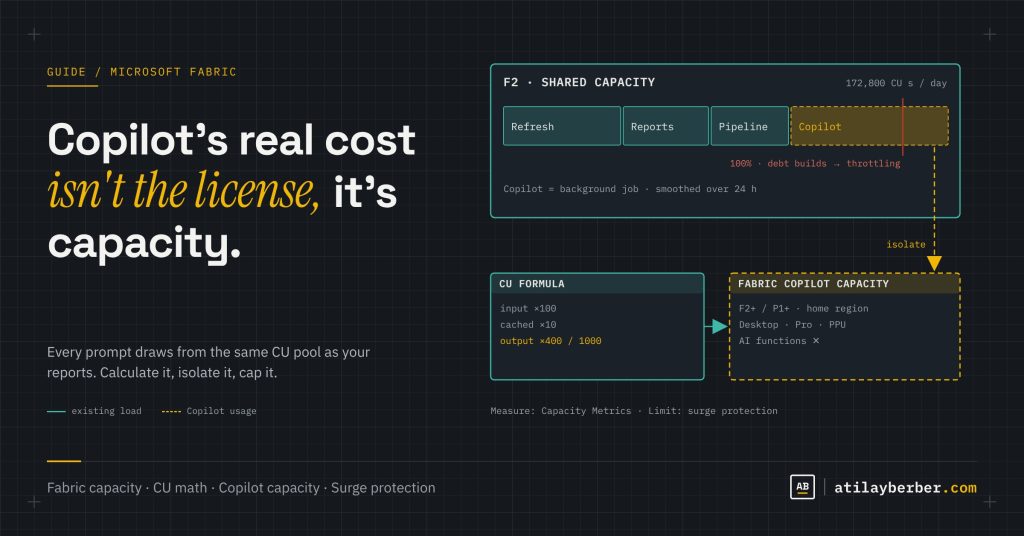
You don’t buy a separate Copilot license or a separate billing line. Every prompt and every answer draws from the same pool as your reports, refreshes, notebooks and pipelines: your capacity’s Capacity Unit (CU) budget. In the Capacity Metrics app it shows up as the “Copilot in Fabric” operation.
The unit of measure is the token. Roughly 1,000 tokens equal about 750 words. The current rates on Microsoft Learn are:
| Component | Unit | Consumption |
|---|---|---|
| Input prompt | 1,000 tokens | 100 CU seconds |
| Cached input prompt | 1,000 tokens | 10 CU seconds |
| Output completion | 1,000 tokens | 400 CU seconds |
Two practical takeaways:
- Output costs four times as much as input. Requests that generate long answers (“explain every visual on this page in detail”) consume noticeably more than short, focused ones.
- Caching is automatic and the discount is large. When a request shares its beginning with a recent one (system instructions, schema context, conversation history), the shared part is billed at 10 CU seconds instead of 100. There’s nothing to configure.
A word of caution: some sample calculations floating around online use older rates from Microsoft’s 2024 examples. When you do your own math, use the current table on Microsoft Learn. Microsoft notes that rates can change and that changes are announced in the release notes.
Smoothing and throttling: why it slows down “three days later”
Fabric classifies Copilot operations as background jobs. That brings good news and bad news:
- The good news: background consumption is smoothed over 24 hours. A burst of Copilot use at lunchtime doesn’t lock the capacity on the spot, so Fabric can serve more requests at peak times.
- The bad news: smoothed consumption doesn’t disappear; it’s taken from the budget of the hours ahead. If Copilot uses more than the capacity can carry every day, the debt keeps growing.
Fabric’s throttling policy reacts to that debt in stages. Once the capacity has used up the next 10 minutes of budget, interactive work (report queries) starts to be delayed. Past one hour, interactive requests are rejected. Past 24 hours, background jobs (refreshes, pipelines and Copilot itself) are rejected too. When the capacity is exhausted, everything stops.
That’s the “three days later” story: on a small SKU like F2 you overspend a little every day, smoothing hides it for a while, and then the accumulated debt slows down the morning reports. The problem didn’t start that morning; it started days earlier.
Doing the math: F2 vs. F64
Let’s use Microsoft’s own example: an average Copilot request with 2,000 input tokens and 500 output tokens.
(2,000 × 100 + 500 × 400) / 1,000 = 400 CU seconds per request
400 / 60 = 6.67 CU minutes ≈ 0.11 CU hours
Now compare that with each capacity’s daily budget. An F SKU provides as many CUs as the number in its name, and a day has 86,400 seconds:
| Capacity | Daily budget | If only Copilot ran (400 CU s/request) |
|---|---|---|
| F2 | 2 × 86,400 = 172,800 CU s | ≈ 432 requests/day |
| F8 | 691,200 CU s | ≈ 1,728 requests/day |
| F64 | 5,529,600 CU s | ≈ 13,824 requests/day |
The F64 row matches the example on Microsoft Learn exactly. The key point, though, is that these numbers assume nothing else runs on the capacity. In reality, the same budget is shared with refreshes, report queries and data jobs. If your daily refreshes use half of an F2, Copilot is left with room for about 200 requests. A team of 20 people sending 10 prompts each per day blows past that easily.
Caching changes the math as well. If 1,500 of the 2,000 input tokens come from the cache in an ongoing conversation:
(500 × 100 + 1,500 × 10 + 500 × 400) / 1,000 = 265 CU seconds per requestThat’s about a third cheaper for the same question. Rather than telling users to “start a new chat for every question”, encourage them to ask related questions in the same session.
So what does it cost in money?
In Microsoft’s Central US pricing example, a CU hour costs $0.18 pay-as-you-go and $0.107 with a reservation. A 0.11 CU-hour request works out to roughly two cents at pay-as-you-go rates. A single request is cheap; the real cost is being forced up to the next SKU because of Copilot. Moving from F2 to F4 doubles your capacity bill. Prices vary by region, so check yours on the Azure pricing page. Even when a Copilot request is processed in another region, you’re billed at your capacity’s billing-region price.
Three architecture options
| Option | How it works | When to use it | Risk |
|---|---|---|---|
| Single capacity | Reports, data jobs and Copilot share one pool | Small team, low and predictable Copilot usage | Copilot peaks can slow production reports |
| Fabric Copilot capacity | One capacity is designated for Copilot; all Copilot usage of selected users is billed there | When you want to isolate Copilot from production and monitor it in one place | Cost of an extra capacity; some limitations |
| Bigger SKU | One pool, more CUs | When Copilot and data workloads grow together, and F64 benefits come into play | Unplanned Copilot use can fill a big SKU too |
Fabric Copilot capacity: how to isolate Copilot
By default, Copilot usage is billed to the capacity that holds the user’s content. With several capacities in an organization, the cost gets spread around and it’s hard to see who’s spending what. A Fabric Copilot capacity consolidates that usage: wherever assigned users use Copilot or data agents, the consumption lands on the Copilot capacity.
Three main benefits:
- Isolation: analysts generating report pages with Copilot on a Monday morning don’t eat into the production reports’ capacity.
- Reach: Copilot in Power BI Desktop and in Pro, PPU and Trial workspaces can be billed to this capacity. In workspaces on capacities smaller than F64, Copilot in Data Factory, Data Engineering, Data Warehouse, Data Science, Real-Time Intelligence and Activator, as well as data agents, are supported too.
- Visibility: you see the Copilot cost in a single capacity’s metrics.
Setup steps
- The Fabric administrator enables Copilot for the relevant users in the Admin portal, ideally through a security group.
- The Fabric administrator allows capacity admins to designate their capacities as Copilot capacities. The “Capacities can be designated as Fabric Copilot capacities” setting has been on by default for all tenants since February 2026.
- The capacity administrator assigns a group of users as Copilot users of that capacity in the capacity settings.
- Users don’t need to do anything; billing is routed to the Copilot capacity automatically.
Limitations to know
- The Copilot capacity must be at least F2 or P1.
- It’s supported only in the tenant’s home region.
- A user can be tied to only one Copilot capacity. If assigned to several, the most recently created one wins.
- A Copilot capacity assigned to a user takes precedence over the workspace’s own capacity.
- Capacities in Embedded license mode aren’t supported.
- Fabric AI functions aren’t supported; they keep consuming from the workspace’s capacity.
- The Copilot capacity admin can see item and workspace metadata in the usage records. Decide early, from a governance angle, which team takes on that role.
Keeping cost under control: four steps
1. Measure: the Capacity Metrics app
Filter the Fabric Capacity Metrics app on the “Copilot in Fabric” operation and answer a few questions: What share of total CU is Copilot? Which items and users consume the most? At what times of day does it peak? The Item History view (preview) shows 30 days of consumption by workspace and item, which is ideal for spotting trends.
2. Limit: surge protection
Surge protection for background operations is generally available. When the capacity reaches a set level of utilization, it rejects new background jobs early to avoid deep throttling. Workspace-level surge protection (preview) goes a step further: you can stop a workspace from using more than a given percentage of the capacity over a rolling 24-hour window and temporarily block a workspace that crosses the threshold. Workspaces you mark as “mission critical” are exempt.
One improvement from the October 2026 Power BI update matters here too: semantic models now report the CU usage of long-running operations while they run, not only when they finish. Surge protection therefore spots expensive jobs earlier: fewer operations fail late through throttling, and more are rejected or delayed up front. If your refresh failure alerts changed recently, this may be why.
3. Choose who uses it: a pilot group
This is what Microsoft recommends as well: rather than opening Copilot to the whole tenant, start a pilot with a security group. Measure consumption per scenario (for example, an AI narrative visual on a high-traffic dashboard, or subscription summaries), scale the numbers to your user count, then expand. A broad rollout without validation can exhaust a capacity quickly.
4. Size it: the SKU estimator
Before buying a new capacity, get an estimate with the Fabric SKU estimator (preview). Feed it the “daily Copilot CU per user” figure from your pilot. The estimator gives you a starting point; the Metrics app tells you the real number.
User habits that lower the cost
- Short, targeted requests: “Summarize why sales dropped by region in three bullets” beats “summarize this page” on both quality and output tokens.
- Stay in the same session: the caching discount applies to consecutive requests with shared context.
- Get the model ready for Copilot: a semantic model with clear names and descriptions lets Copilot reach the right answer with less trial and error. I covered this in the post on semantic model descriptions.
- Be careful with high-traffic reports: every AI visual on a dashboard that hundreds of people open generates consumption on every view.
Admin checklist
- Is the Copilot tenant setting open to the whole organization or to a security group?
- Do the cross-geo settings match your organization’s data residency policy?
- Which capacity does Copilot usage land on: production, or a dedicated Copilot capacity?
- Is there a weekly routine to check Copilot in the Capacity Metrics app?
- Are critical workspaces marked as mission critical, and are low-priority ones capped?
- When the capacity starts throttling, who finds out? (That’s the topic of the next post: monitoring and alerts.)
Common mistakes
- Testing on a trial capacity and being surprised in production: Copilot requires paid capacity, and a trial won’t show you real consumption.
- Pausing the capacity and wondering why Copilot stopped: when the capacity is paused, Copilot stops too.
- Assuming the Copilot capacity also covers AI functions: it doesn’t.
- Looking only at daily totals: because of smoothing, problems show up a few days late. Watch the trend.
Wrapping up
Copilot’s real cost isn’t the license; it’s capacity. A single request costs a few cents, but unplanned usage slows your production reports or pushes you to a bigger SKU. My advice is simple: start with a pilot group, measure in the Metrics app, isolate Copilot with a Fabric Copilot capacity as usage grows, and cap it with surge protection. That way a surprise bill and “why are the reports slow?” complaints won’t show up on the same day.
Which capacity does Copilot usage land on in your organization? Share it in the comments or on LinkedIn.
Sources
- Copilot in Fabric consumption (Microsoft Learn)
- Fabric Copilot capacity (Microsoft Learn)
- Enable Copilot in Fabric (Microsoft Learn)
- Fabric Copilot Pricing: An End-to-End example (Microsoft Fabric Blog)
- Workspace-level surge protection (Fabric Updates Blog)
- MC1217152: Copilot capacity designation enabled by default
STAY IN THE LOOP
New guides, sorted by topic in a single email.
Every Monday, the week's new posts arrive grouped by topic. No new posts, no email.
2 comments