
Author: @atilayberber
For years, drawing a Gantt chart in Power BI meant downloading a custom visual from AppSource. In corporate environments that came with the same questions every time: “Is this visual approved?”, “Who keeps it updated?”, “Will it match our theme colors?” The October 2026 update closes that chapter: Gantt is now one of Power BI’s own core visuals, in preview for now.
This guide covers the new Gantt visual’s fields, how to build one step by step, the DAX measures you need for milestones and progress, the formatting options, its limitations, and an end-to-end example of a retail campaign calendar.
In short: what’s in this post
- What the new Gantt visual does, and how it differs from custom visuals
- Turning on the preview and adding the visual
- Fields: task, start, end, progress, categories, columns
- Preparing the data model and the DAX measures you need
- End-to-end example: a retail campaign calendar
- Formatting: colors, timeline axis, zoom, column area
- Limitations, and when to keep your custom visual
- Other news in the October 2026 update
What does the new Gantt visual do?
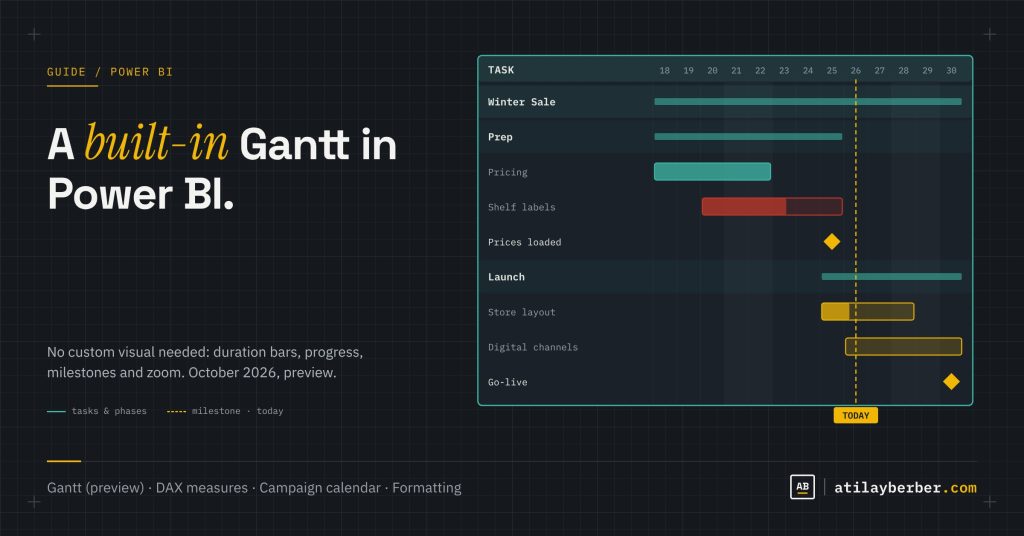
- Duration bars: each row is a task, and its bar shows the task’s duration on the timeline.
- Milestones: rows with an empty end date are drawn as milestone markers instead of bars.
- Progress: add a measure that returns percentage complete per row, and progress is shown inside the bar.
- Up to three category levels: group tasks by phase, team, channel and so on.
- Column area: show columns such as owner, status or duration next to the task list.
- Zoom: readers can zoom into a calendar window and return to the full range without leaving the visual.
The real benefit of a core visual is governance: no separate approval process, no version tracking, no “who uploaded this visual?” Report themes, conditional formatting and cross-filtering with other visuals all work the standard Power BI way.
Turning on the preview
- Update Power BI Desktop to the October 2026 release.
- Go to File > Options and settings > Options > Preview features and tick the Gantt visual.
- Restart Power BI Desktop. The visual now appears in the Visualizations pane.
Because it’s a preview feature, the interface and options may change before general availability. Try it in a test report before putting it into production.
Fields: what data does the visual expect?
| Field | Required? | What to put in it |
|---|---|---|
| Task label | Yes (the only required field) | The name of each row: task, work package, campaign step |
| Start | No | Start date (column or measure) |
| End | No | End date; leave blank for milestones |
| Progress | No | A measure returning percentage complete per row |
| Categories | No | Up to three levels of grouping |
| Columns | No | Details shown next to the task list |
| Tooltips | No | Information shown only on hover, not as columns |
Two important details: Start and End accept measures, so you decide how dates aggregate at category level (earliest start, latest end and so on). And use plain date fields rather than date hierarchies.
Preparing the data model
The ideal shape for a Gantt is a simple table with one row per task. Here’s a sample Tasks table:
| Column | Type | Example |
|---|---|---|
| TaskId | Whole number | 101 |
| Task | Text | Print shelf labels |
| Campaign | Text | Winter Sale 2026 |
| Phase | Text | Prep / Launch / Close |
| Owner | Text | Store Operations |
| StartDate | Date | 2026-11-20 |
| EndDate | Date | 2026-11-27 |
| PlannedHours | Decimal | 40 |
| CompletedHours | Decimal | 25 |
| IsMilestone | Whole number (0/1) | 0 |
The DAX measures you need
Start and end: to show a group’s earliest start and latest end on category rows:
Gantt Start = MIN ( Tasks[StartDate] )

Gantt End =
IF (
    MAX ( Tasks[IsMilestone] ) = 1
        && HASONEVALUE ( Tasks[TaskId] ),
    BLANK (),
    MAX ( Tasks[EndDate] )
)
The end measure returns blank on a single task row flagged as a milestone, and the visual draws that row as a milestone. The HASONEVALUE check stops a whole category from losing its end date just because it contains a milestone.
Progress: should return a percentage between 0 and 1 per row. An hours-based example:
Gantt Progress =
DIVIDE ( SUM ( Tasks[CompletedHours] ), SUM ( Tasks[PlannedHours] ) )
This also works sensibly at category level: progress for the “Prep” phase is weighted by the hours of the tasks under it.
Status color (for conditional formatting):
Gantt Status Color =
VAR EndDate = MAX ( Tasks[EndDate] )
VAR Progress = [Gantt Progress]
RETURN
    SWITCH (
        TRUE (),
        Progress >= 1, "#0B6B63",                     -- done
        EndDate < TODAY () && Progress < 1, "#C0392B", -- late
        "#F2B705"                                     -- in progress
    )
End-to-end example: a retail campaign calendar
Project tracking is the obvious use for a Gantt, but in retail there’s a far more common need: campaign calendars. A sale campaign needs pricing, shelf labels, store layout, digital channels and logistics all to hit the same date. Here’s how to build it in a report:
- Add the visual: with nothing selected on the canvas, pick Gantt in the Visualizations pane.
- Task label:
Tasks[Task]. - Start / End: the
[Gantt Start]and[Gantt End]measures. - Progress:
[Gantt Progress]. - Categories:
Campaignfirst, thenPhase, so each campaign groups its Prep, Launch and Close phases. - Columns:
Ownerand a measure that returns the task duration in days. - Tooltips: planned and completed hours.
- Milestones: flag single-day key moments such as “Prices loaded into the system” and “Campaign go-live” with
IsMilestone = 1. - Interaction: add a region or store slicer and a budget-by-campaign visual to the same page. The Gantt works in the same filter context as the other visuals.
The result: on one page, the campaign manager sees which tasks are late (red), which are done (teal), and how many days are left until launch. All in the same report as the sales and budget data, instead of a separate project tool.
Similar scenarios: store openings and refits, supplier delivery windows, seasonal changeover calendars, or the BI team’s own development roadmap.
Formatting
Colors
Set the main color under Format visual > Rows > Color; it cascades to categories, bars, milestones and row backgrounds. The default transparency levels are: bars and milestones 0%, first-level category background 70%, second level 80%, third level 90%, task row background 100% (no color). That hierarchy gives you readable grouping with no extra work.
To give each group its own color, turn on More granular at category or row level. For status-based colors, use the [Gantt Status Color] measure above as a “Field value” in conditional formatting. Defining the colors in a report theme keeps every report consistent.
Progress style
There are two styles. In the first, a semi-transparent white overlay sits on the bar, with the bar’s color visible beneath. In the second, the bar’s border outlines the duration and progress appears as a fill inside it. You can also set what percentage of the bar’s height the progress indicator takes up.
Timeline axis and zoom
- Auto-scale on: years, months or days are shown depending on the date range, the visual’s size and the zoom. You can set the display format for each level, or type your own with “Custom”.
- Fixed scale: pick a primary (more detailed) and a secondary (less detailed) level, for example months and years. You can also use the same unit on both levels with different formats, such as day name and day of month.
- Shaded days: shading weekends makes working-day planning much easier to read.
- Zoom axis: readers can focus on a window and jump back to the full range with one click.
Column area
By default the column area sizes itself to fit all columns without a horizontal scrollbar. You can fix the area width and individual column widths; if the total exceeds the area, a scrollbar appears. You can style a specific level of a column on its own (bold category subtotals, for example). Showing subtotals at category level requires measures or aggregations. Links can also be shown as small icons instead of text.
Limitations
- Up to 1,000 rows. For large projects, narrow the visual with a slicer or a page filter.
- One start, one end. Each bar draws a single start and end date. For multi-phase tasks, model each phase as its own row, and use columns or tooltips to show planned vs. actual dates side by side.
- Nothing finer than days. Auto-scale doesn’t show levels below days, although bars can draw partial days when the date values include a time.
- Static colors with More granular: may not apply at some category levels or to tasks that appear in more than one category. Use conditional formatting instead.
- Measure formats: may not show in tooltips or columns. Workaround: set the format with Data format on the General tab of the Format visual pane.
- Task dependencies: Microsoft’s documentation doesn’t mention dependency arrows between tasks.
When should you keep your custom visual?
If your reports rely on task dependencies, critical path, baseline comparisons, or plans with more than 1,000 rows, don’t remove your existing custom visual yet. Try the new visual on a parallel page and move over once it’s generally available, if it meets your needs. For simple timelines, campaign calendars and phase-based tracking, the core visual is good enough today and far easier from a governance point of view.
What else is in the October 2026 update?
| Feature | Status | Why it matters |
|---|---|---|
| List slicer with dropdown mode | Preview | Lists with hundreds of customers or products no longer take over the page; selections show as removable pills, and “Show selected first” pins them to the top |
| Auto-expanding hierarchy axis with field parameters | Generally available | Works for bar, column and line charts |
| Continuous CU reporting for long operations | Platform improvement | Semantic models report usage while long operations run, so surge protection sees expensive jobs sooner |
| Custom visual support in the Report Authoring skill | Varies by source | The agent that builds reports from natural language can use custom visuals already in the report |
I covered that capacity change and Copilot’s effect on capacity in the capacity post, and setting up monitoring and alerts in the workspace monitoring post.
Wrapping up
The built-in Gantt answers one of the longest-standing requests in Power BI. Since it’s still in preview, don’t move your critical project reports over just yet. But for a campaign calendar, a launch plan or your team’s roadmap, it’s worth trying today. With a date measure, a progress measure and well-chosen categories, you get a readable timeline in about five minutes.
Where will you use the Gantt: project tracking, a campaign calendar, or something else? Let me know in the comments or on LinkedIn.
Sources
- Gantt visual in Power BI (preview) (Microsoft Learn)
- Power BI October 2026 Feature Summary (Fabric Community)
- Power BI October 2026: Key Updates (Data+AI)
- Conditional formatting in Power BI (Microsoft Learn)
STAY IN THE LOOP
New guides, sorted by topic in a single email.
Every Monday, the week's new posts arrive grouped by topic. No new posts, no email.