
Author: @atilayberber
The pipeline failed at 2:00 a.m. At 8:30 the sales manager messaged you: “the numbers in the report are from yesterday.” That’s when you found out. Sound familiar?
Getting a Fabric project running is half the job. The other half is spotting a problem before your users do, and finding the cause quickly. Monitoring in Fabric has changed a lot in recent months: workspace monitoring moved to a new “monitoring item” model, setting up alerts with Activator got easier, and the operations agent has started investigating failures for you.
This guide covers what workspace monitoring is, how to set it up, what data it collects, how to query it with KQL, and how to turn that data into alerts.
In short: what’s in this post
- The layers of monitoring in Fabric: Monitor hub, Capacity Metrics, workspace monitoring
- The monitoring item: Eventhouse, Eventstream, Activator and the operations agent
- Which items send which logs
- Step-by-step setup and prerequisites
- Ready-to-use KQL queries: refresh errors, slow DAX queries, job history
- Building alerts: from a KQL queryset to Activator
- Cost, retention, limitations and migrating from the legacy version
Three layers of monitoring in Fabric
“Monitoring” covers several different tools in Fabric. Knowing which one answers which question is the first step to picking the right one:
| Tool | Question it answers | Who it’s for |
|---|---|---|
| Monitor hub | What’s running right now, and what failed? | Developers, data engineers |
| Capacity Metrics app | Who is consuming my capacity, and how much? Is it throttling? | Capacity admins |
| Workspace monitoring | What did the items in this workspace do, how long did it take, and why did it fail? Historical and queryable. | Team leads, platform teams |
The Monitor hub is getting a refresh too: the new version (preview) adds at-scale health views across workloads, jobs, apps, agents, alerts and capacities. Query-level details for Dataflow refreshes can now be viewed without leaving the hub (preview). But the Monitor hub shows the present moment. For the pattern, the recurrence and the root cause of a problem, you need workspace monitoring.
What is workspace monitoring?
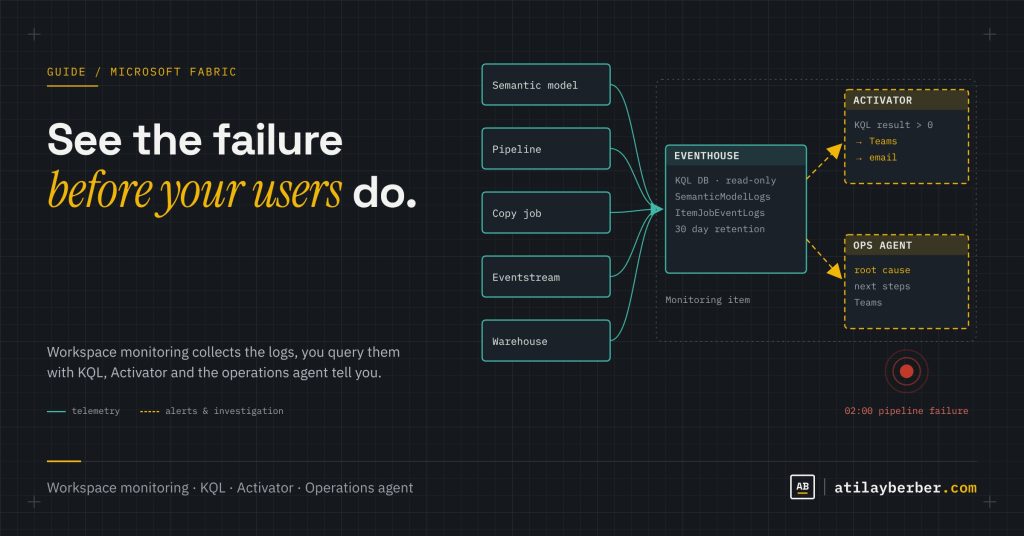
Workspace monitoring (preview) is an optional observability layer that collects and organizes logs and metrics from supported Fabric items. In the new version everything is managed through a monitoring item. When you create one, your workspace gets:
- An Eventhouse with a read-only KQL database: where the logs live.
- An Eventstream: carries the telemetry, and can optionally route it to a custom endpoint.
- An Activator: for turning log data into alerts.
- An operations agent (optional): an AI agent that investigates failures for you.
If you’ve used Azure Log Analytics for Power BI, this will feel familiar. The difference is that everything lives inside Fabric, can be queried with KQL, and plugs straight into the rest of Real-Time Intelligence: dashboards, alerts and agents.
Which items send which data?
Coverage grows every month. Based on the current list on Microsoft Learn:
| Workload | Item | Data sent |
|---|---|---|
| Power BI | Semantic model | Semantic model operation logs (queries, refreshes, errors) |
| Data Factory | Pipeline | Pipeline activity run logs |
| Data Factory | Copy job | Copy job run details |
| Data Warehouse | Warehouse, SQL analytics endpoint | Query execution logs |
| Real-Time Intelligence | Eventhouse | Metric, command, query, ingestion, throttling and scale-out events |
| Real-Time Intelligence | Eventstream | Node status, metrics, error metrics |
| Real-Time Intelligence | Activator | Rule notifications |
| Data Engineering | GraphQL API | Metrics and operation logs |
| Mirroring | Mirrored database | Execution logs |
| Real-Time hub | Job events | Job event logs |
A table may not appear in the database until the related item produces its first telemetry. If a table is missing right after setup, don’t panic; run a refresh or a pipeline.
Step-by-step setup
Prerequisites
- The workspace is assigned to a Fabric or Power BI Premium capacity.
- A Fabric admin has enabled the “Workspace admins can turn on monitoring for their workspaces” tenant setting.
- “Users can create Fabric items” is enabled for you. If it isn’t, the Monitoring option just appears unavailable, with no error. This is the most common “why won’t it turn on?” cause.
- You have the Admin role on the workspace.
Setup
- Open the workspace and go to Workspace settings > Monitoring.
- Pick the destination: the Eventhouse in this monitoring item (everything is created in this workspace) or the Eventhouse in another monitoring item (to centralize telemetry from several workspaces; both must be in the same Azure region).
- Optionally, enable a custom endpoint in the Eventstream. During preview this can only be done at creation time.
- Optionally, add an operations agent through the “agentic investigation” option. You can’t turn it off later.
- Complete the configuration and turn on data collection. A new monitoring item starts with collection off, and skipping this step is a very common mistake.
Get two decisions right up front, because you can’t change them later: which Eventhouse the data goes to, and whether to add the operations agent. Also note that workspace monitoring doesn’t backfill; you only see activity from the moment you turn it on.
Central or per workspace?
If you have several workspaces (say dev, test and prod, or one per department), sending everything to a single central monitoring item is usually the better choice: one place to write queries, one dashboard. Keep in mind that each workspace sending data creates its own KQL database in the destination workspace, and those databases count toward the destination’s 1,000-item limit.
Querying with KQL: ready-made queries
The Contributor role on the workspace is enough to query the monitoring database. Save the queries below in a KQL queryset so the whole team can use them. Column values can vary by tenant and item type, so on the first run take a quick look at the data with take 10 and adjust the filters.
1. Overview of recent jobs
ItemJobEventLogs
| top 100 by Timestamp desc
2. Semantic model errors in the last 24 hours
SemanticModelLogs
| where Timestamp > ago(1d)
| where Level =~ "Error"
| project Timestamp, WorkspaceName, ItemName, OperationName, ExecutingUser, EventText
| order by Timestamp desc
3. The 20 slowest DAX queries
SemanticModelLogs
| where Timestamp > ago(7d)
| where OperationName == "QueryEnd"
| project Timestamp, ItemName, ExecutingUser, DurationMs, CpuTimeMs, EventText
| top 20 by DurationMs desc
The EventText column holds the DAX query itself. You can trace the slowest query back to its report through the report ID in the ApplicationContext column.
4. Hourly query load and average duration
SemanticModelLogs
| where Timestamp > ago(3d)
| where OperationName == "QueryEnd"
| summarize Queries = count(), AvgDurationMs = avg(DurationMs) by bin(Timestamp, 1h), ItemName
| render timechart
This chart usually answers “why are the reports slow at 9:00 a.m.?” at a glance: either the query count peaks at that hour, or a refresh is running at the same time.
If you’d rather not start from scratch, Microsoft’s fabric-toolbox GitHub repo has ready-made Real-Time Dashboard and Power BI report templates for workspace monitoring, and the Fabric samples repo includes sample KQL queries.
From monitoring to action: setting up alerts
Collecting logs doesn’t fix anything by itself. The value is in the right person hearing about it at the right moment. The flow is simple:
- Write the KQL query that detects the problem and save it in a queryset (the error query above, for example).
- Create an alert from the query results; it connects to the Activator in the monitoring item.
- Set the condition and channel: if the result count is above zero, send an email or a Teams message.
A starter set of alerts
| Alert | Source | Who gets it? |
|---|---|---|
| Semantic model refresh failure | SemanticModelLogs | Model owner |
| DAX queries over 10 seconds (more than 5 per hour) | SemanticModelLogs | BI developer |
| Pipeline failure or a run much longer than usual | Pipeline logs, ItemJobEventLogs | Data engineer |
| Capacity throttling | Capacity events | Capacity admin |
Two more additions on the capacity side: Capacity Operation Events in the Real-Time Hub (preview) give you operation-level data on capacity consumption, duration and throttling. And managing failure notifications in the Monitor hub (preview) lists every scheduled item with failure notifications so you can manage recipients in one place. I covered capacity and Copilot cost in the previous post; a throttling alert is the natural next step.
The operations agent: let it investigate for you
This is the most interesting part of the new monitoring story. The operations agent is an AI agent that continuously watches the conditions you define, detects patterns and takes action within boundaries set by people. A few preview features stand out:
- Operations Agent for Pipelines: watches pipeline runs and notifies you in Teams about failures or anomalies.
- Investigator insights: after an alert, analyzes the related data and suggests next steps.
- Fabric Observability Insights: investigates pipeline failures using Fabric context, doing the first round of root-cause analysis for you.
My suggestion: think of the agent as a first responder. When a pipeline fails at 2:00 a.m., getting a morning summary that says “this source table came in empty, and the copy job in the previous step timed out” removes the most time-consuming part of the work. You still make the call and the fix.
Cost, retention and throttling behavior
- Cost: workspace monitoring consumes your capacity (Eventhouse and Eventstream usage). There’s no separate bill, but it isn’t free either. Include it in your capacity planning.
- Retention: the default retention is 30 days. You can change it in the monitoring KQL database under Manage > Data policies. The caching period can’t be longer than the retention period.
- Throttling: when the capacity throttles, Eventstream ingestion, Eventhouse monitoring, queries on the monitoring Eventhouse and Real-Time Dashboards keep working. But Power BI reports and Activator alerts that use the monitoring data respect the capacity state and can be throttled too. Design your critical alerts with that in mind.
Limitations and things to watch
- Only one monitoring item can collect telemetry for a workspace at a time.
- The monitoring database is read-only; you can’t add your own tables.
- Private Link is supported. If you run into trouble, temporarily turn Private Link off, enable monitoring, then turn it back on.
- If your organization already uses the Azure Log Analytics integration for Power BI, plan how the two will coexist. Sending the same data to two places means extra cost and extra confusion.
Migrating from legacy workspace monitoring
If you’ve used workspace monitoring for a while, you’re probably on the legacy version (the one that created an Eventhouse database directly in the workspace). Migration isn’t automatic: first turn off Log workspace activity under Workspace settings > Monitoring, then use the migration banner to configure the monitoring item. Old data stays in the legacy Eventhouse, and new telemetry can take up to an hour to show up. The legacy version had no filtering by log type and no Private Link support, so the new one is better on that front as well.
Monitoring ground rules for the team
- Every alert needs an owner. An alert that lands in a channel nobody reads isn’t an alert.
- Fewer, meaningful alerts. Nobody opens a channel that gets 50 notifications a day after the first week. Tune thresholds with real data.
- Document your queries. Keep KQL queries in a queryset and note when and why each one fires.
- Write a short runbook. Half a page that says “if a refresh fails, check this first” cuts down a lot of midnight panic.
- Review weekly. A weekly look at the hourly query load chart helps you catch problems before they trigger alerts.
Wrapping up
Monitoring in Fabric is no longer a separate project; it’s part of the platform. The Monitor hub shows the present, workspace monitoring shows the history and the patterns, Activator tells you, and the operations agent does the first investigation. Setup takes a few minutes. The real work is deciding which signal should wake up whom. Make that decision as a team, and let the platform handle the rest.
On your team, who usually spots a failure first: the system or a user? Let me know in the comments or on LinkedIn.
Sources
- What is workspace monitoring? (Microsoft Learn)
- Enable monitoring in your workspace (Microsoft Learn)
- Semantic model operation logs (Microsoft Learn)
- What’s new in Microsoft Fabric (Microsoft Learn)
- fabric-toolbox: workspace monitoring dashboards (GitHub)
- Sending alerts from Fabric Workspace Monitoring (Chris Webb’s BI Blog)
STAY IN THE LOOP
New guides, sorted by topic in a single email.
Every Monday, the week's new posts arrive grouped by topic. No new posts, no email.